Basic formula Row and Column locked Row locked, Column Free Row Free, Column locked Back to basic formula
Edit the Cell Press F2: =A1 Basic formula Press F4: =$A$1 Row and Column locked Press F4: =A$1 Row locked, Column Free Press F4: =$A1 Row Free, Column locked Press F4: =A1 Back to basic formula
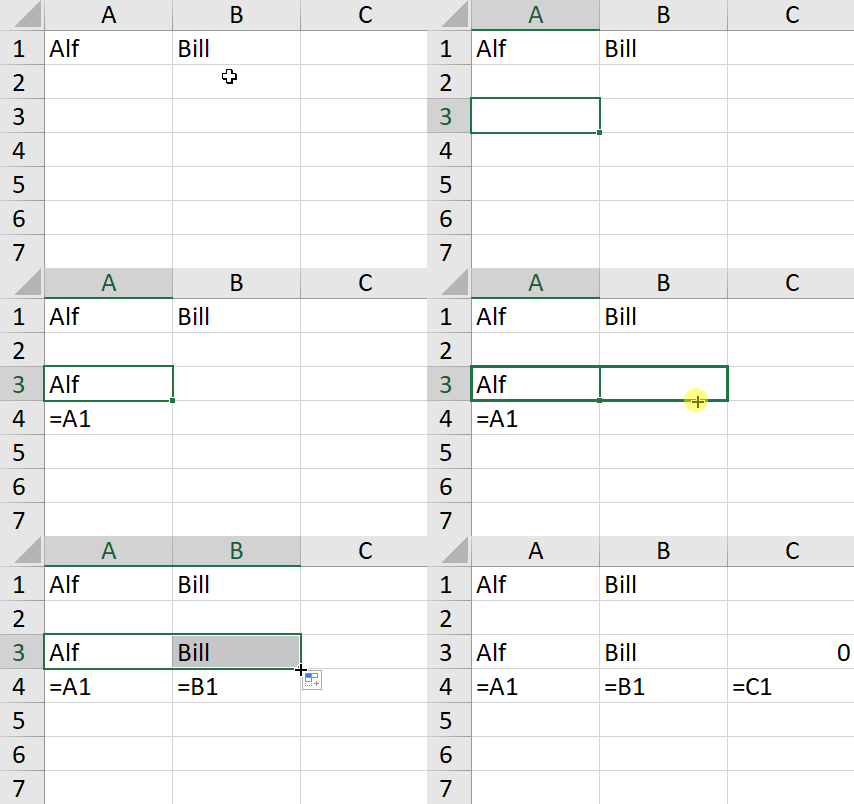
If we enter a formula and then drag it accross, the formula will be copied and will remain relative to its position.
The first formula references A1
When dragged to B3 the new formula references B1
And so to C3 where the new formula references the empty cell C1.
Note that i have added a formula in row 4 to display the formulae in row 3. FYI the formula in A4 is =IFERROR(FORMULATEXT(A3),””)
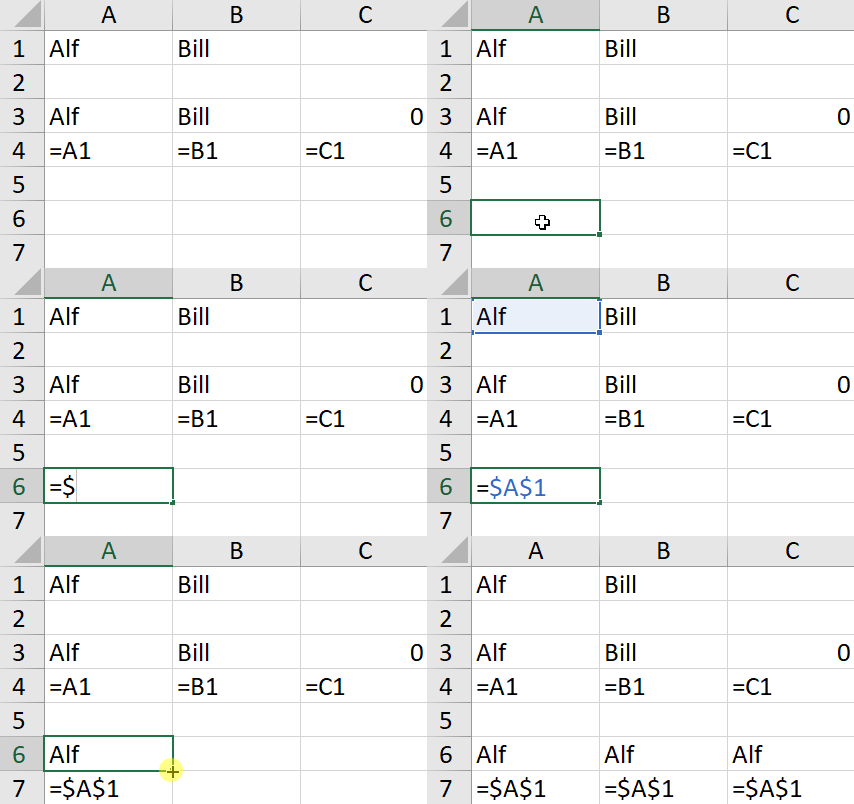
Now we enter the formula and convert it to an absolute reference. Then we drag it accross.
This time each of the new formulae continue to reference cell A1.
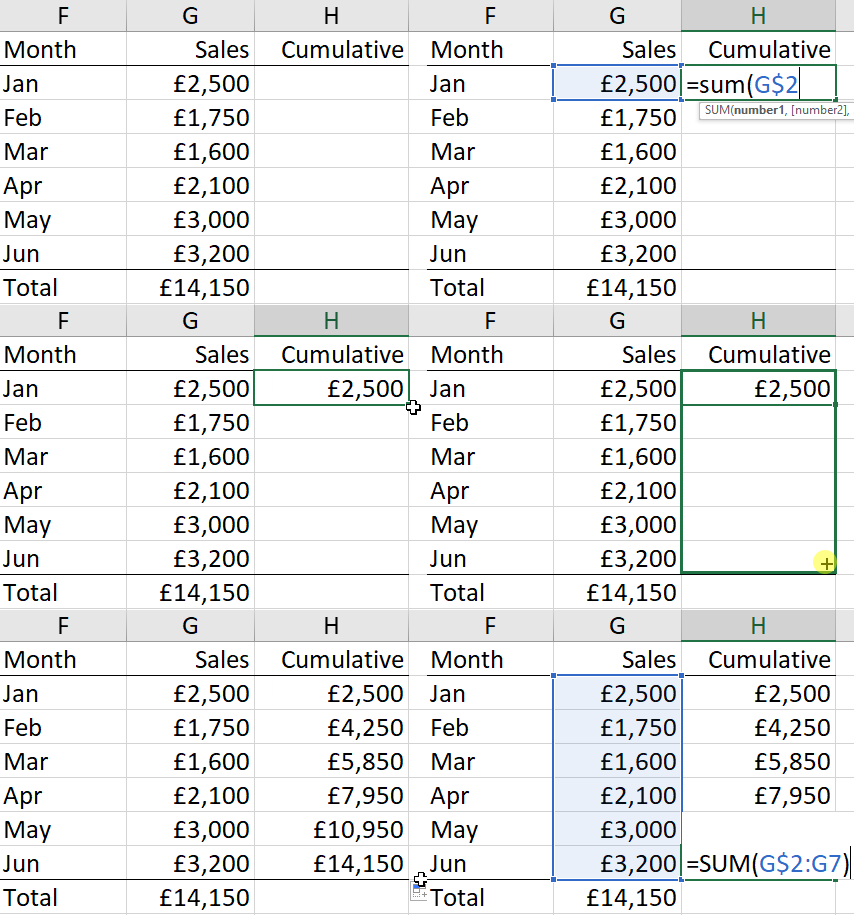
Using absolute references is both important and useful. Below is an example where sales for each month are available. We want to quickly add a column showing the cumulative sales total.
We are entering the sum range with only the first reference made absolute.
This fixes the first reference and allows the second to change.
The formula was entered as SUM(G$2:G2).
When dragged down the June formula becomes SUM(G$2:G7)